




Networking Essentials
Learn the core concepts of home and small business networking: what gear you need, how to connect everything, lock it down securely, and understand when it’s time to move beyond the basic all-in-one modem router.
🔌 Types of Networks
A network connects devices so they can communicate and share resources like internet, printers, and files. The most common types you’ll see are:
- LAN (Local Area Network): Covers a small area like a home, office, or single building.
- WAN (Wide Area Network): Connects multiple LANs over large distances (for example, your ISP’s network or multi-site businesses).
- WLAN (Wireless LAN): A LAN that uses Wi-Fi to connect devices without cables.
🧰 Essential Networking Equipment
The key pieces that make your network work:
- Router: Directs traffic between your devices and the internet.
- Switch: Adds more Ethernet ports so you can connect multiple wired devices.
- Modem: Converts your ISP’s signal (cable, fiber, DSL) into something your router can use.
- Network Cables (Ethernet): Provide fast, stable wired connections.
- Access Points: Extend Wi-Fi coverage to other rooms or areas.
⚙️ Basic Network Setup
Most home and small office networks follow this simple layout:
- Step 1: Connect your modem to the wall jack (coax/fiber/DSL), then connect the modem to the WAN/Internet port on your router.
- Step 2: Connect devices via Ethernet for best speed and reliability, or via Wi-Fi using your router’s wireless network name (SSID).
- Step 3: Log into your router’s web or app interface to set Wi-Fi name, passwords, and basic settings.
🛡️ Network Security Tips
- Change Default Settings: Change admin usernames and passwords from the factory defaults.
- Use Strong Wi-Fi Passwords: Use long, unique passphrases; avoid simple names and dates.
- Enable Encryption: Use WPA3 if available; otherwise, use WPA2-AES (avoid WEP and open networks).
- Update Firmware: Keep router and access point firmware current to patch security holes.
- Monitor Connected Devices: Regularly review what’s on your network and remove unknown devices.
🚀 Basic Routers vs. Advanced Networking
- Basic Routers: Great for small homes or apartments with a handful of devices and light streaming/gaming.
- Advanced Devices (mesh systems, business-grade gear): Better for larger homes, offices, or heavy use:
- More consistent speeds and coverage
- Better security and guest network options
- Features like VLANs, VPN, and advanced traffic control
🏠 ISP-Provided Modem Routers
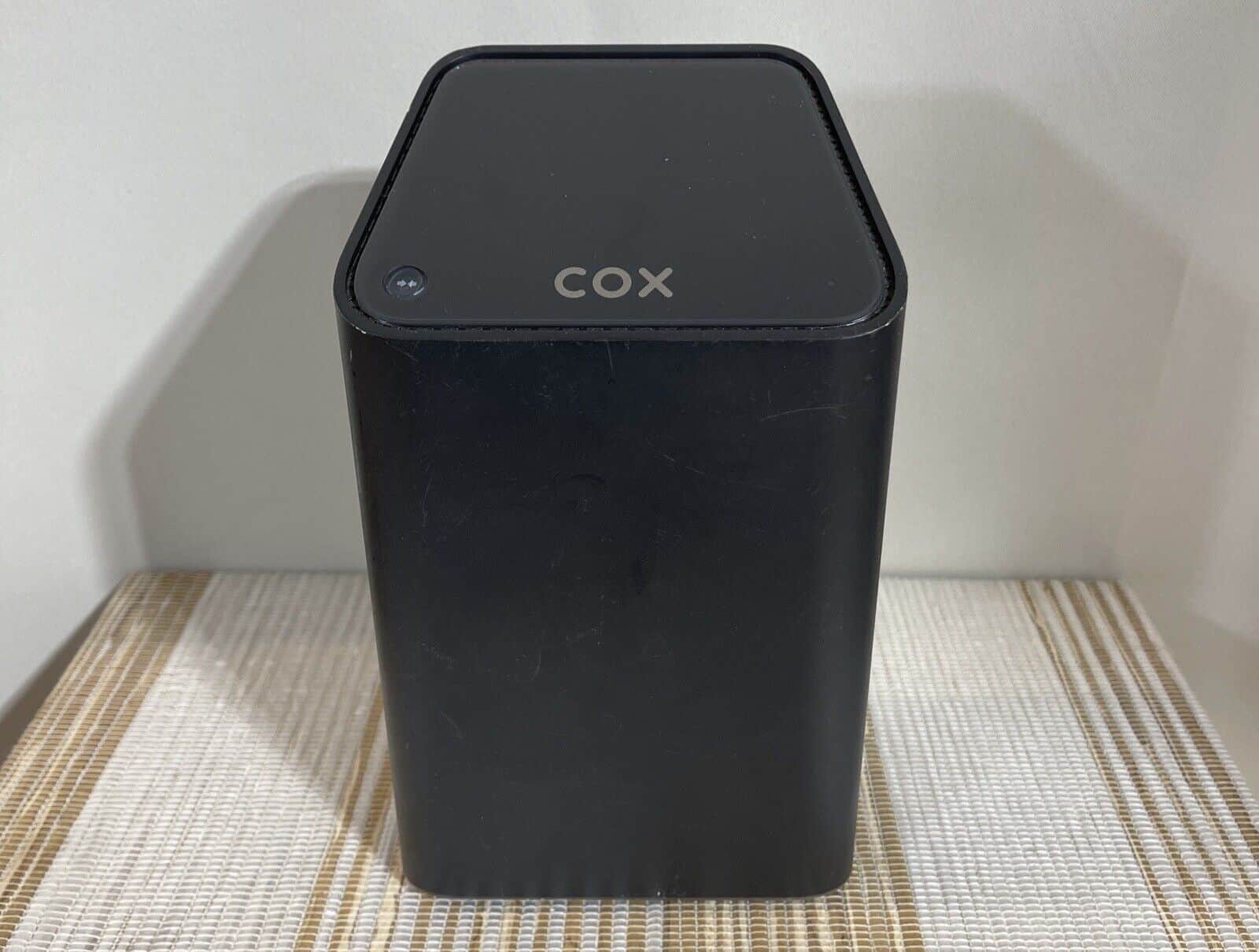
- Functionality: Combines a modem and router in one box for internet and Wi-Fi.
- Convenience: Easy to set up—your ISP usually pre-configures everything.
- Cost-Effective (short term): Often included or rented from your ISP, which can be simpler but adds monthly fees.
- Compatibility: Designed to work smoothly with your ISP’s network.
Standard Service Rates
General computer labor: $100/hour (1-hour minimum). Remote support: $100/hour (1-hour minimum). Networking: $200/hour.
On-site visits: one $60 call-out/travel fee, plus applicable computer or networking labor (or the selected flat service price). Waived for monthly clients. Call-out and travel are the same fee.
Work outside posted hours is 1.5 times the applicable labor rate, including Saturday outside 10 a.m.–1 p.m. Saturday within posted hours is regular rate. Sunday labor is 1.5 times the applicable labor rate. Apply the premium once, without compounding Sunday and after-hours, and never to the call-out/travel fee. Hourly premium examples: $150/hour computer or remote support; $300/hour networking. Posted hours: Monday–Friday 9 a.m.–6 p.m.; Saturday 10 a.m.–1 p.m.
- Diagnostics: $40 — waived when repair work is approved, or credited if already charged.
- Tune-up: $100 flat — startup cleanup, updates, storage cleanup, and performance checks.
- Malware removal + tune-up: $150 flat — includes tune-up, malware removal, browser cleanup, and follow-up scans. Reinstall or recovery is quoted separately before proceeding.
- Basic Windows reinstall: $160 without backup — standard drivers and basic setup included. Windows license extra, quoted separately by edition and source; Microsoft-direct licensing available at the current quoted price. Data migration or recovery quoted separately.
- Standard computer rebuild with Windows: $350 labor — assembly, Windows installation, drivers, and testing. Parts, Windows license, and data migration extra. Complex builds quoted separately.